Guideline
Quick answers. Step-by-step guides. Less reading, more doing.
How to Login
AccountUse the email you registered with.
Don’t have an account? Create one before logging in.
From website menu or profile.
Never share password.
- On the top navigation bar, click Login.
- Enter your Email and Password.
- Click Sign In.
- After login, you can click your username (top-right) to access My Orders and other options.
- Tap Profile on the bottom menu.
- Tap Login (or Sign In).
- Enter your Email and Password.
- Tap Sign In.
Common Problems
Please contact the our customer support to reset your access or resolve account issues
Ensure you are using the same email you registered with. If you recently changed password, try clearing browser cache or reopen the app.
How to Order
OrderingExplore available products and categories.
Select quantity / variant and add to cart.
Fill details and complete payment.
Track status in your account.
Browse & Select Product
Visit the shop page, browse through categories, and open the product you wish to purchase.
Add to Cart
Choose the correct variant (if any), set quantity, then click Add to Cart.
Checkout & Payment
Review your cart, fill in delivery details, and complete payment using the available payment methods.
You will receive an order confirmation once payment is successful.
Track Your Order
You can check your order status anytime from My Orders.
- Look at the top-right corner.
- Click your username to open the dropdown.
- Select My Orders.
- Tap Profile on the bottom menu.
- Tap My Orders.
You’ll see statuses like Pending, Processing, Shipped, or Completed. Tap an order to view full details and tracking (if available).
Common Questions
Pending means payment has not been completed or confirmed yet.
Please wait a few minutes and refresh. If the issue persists, contact support with your payment reference.
Check Order Status
OrdersView all your orders in one place.
Tap the order you want to check.
Track progress or access digital items.
How to Find My Orders
- Click your username at the top-right.
- Select My Orders.
- Tap the order you want to view.
- Tap Profile on the bottom menu.
- Tap My Orders.
- Tap the order you want to view.
Order Status Meaning
Order created but payment is not completed or not confirmed yet.
Payment successful. Your order will be processed soon.
We are preparing your order (packing or processing digital content).
Physical order has been handed to courier. Tracking details will be shown.
Order is finished. For digital products, content is now available.
Payment failed or order was cancelled. You may try again.
Digital Products
When a digital product order is marked as Completed, a Track link will appear inside the order details.
You’ll be redirected to the digital delivery page where you can view or copy your digital content (PIN / code / access details).
Make sure the order status is Completed. If it’s still Processing, please wait a moment or contact support.
Verify Account
VerificationProfile verification details can be submitted only once. Please ensure all information is correct before saving.
- Click your username at the top-right.
- Select Dashboard.
- Click Profile Settings.
- Fill in all required information.
- Upload your identification image.
- Click Save.
- Tap Profile on the bottom menu.
- Tap Profile Settings.
- Fill in all required information.
- Upload your identification image.
- Tap Save.
Required Information
- Full Name
- Phone Number
- Email Address
- IC Number
- Date of Birth
- IC Image Upload
Verification Status
Your profile has not been verified yet. This is the default status after submission.
Your profile has been successfully reviewed and approved by admin.
Verification is reviewed manually by admin. Once approved, your status will automatically change from Unverified (grey) to Verified (green).
KYC Guide
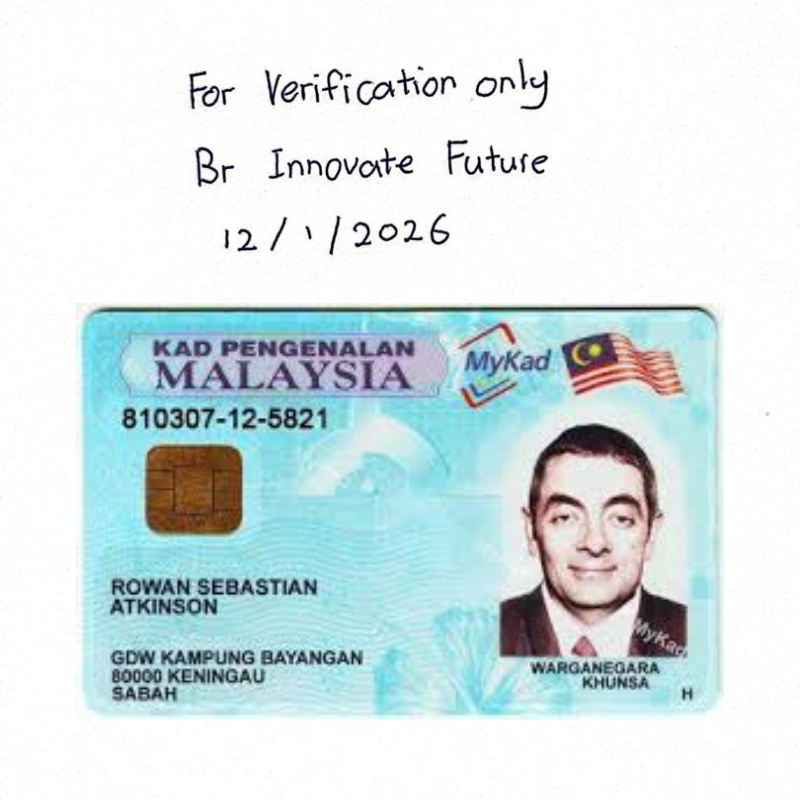
SecurityTo protect your identity and prevent misuse, we require a clear IC (MyKad) photo before approving account verification.
Tip: Use natural lighting and avoid flash glare so all text remains sharp and readable.
Method 1: Physical Note
RecommendedWrite a note on a small piece of paper and place it next to your IC when taking the photo.
Method 2: Digital Watermark
Take a photo of your IC first, then add a watermark text across the image.
- Place the text diagonally across the photo.
- Do not cover your name, IC number, or face.
- Recommended text: For Verification Use Only
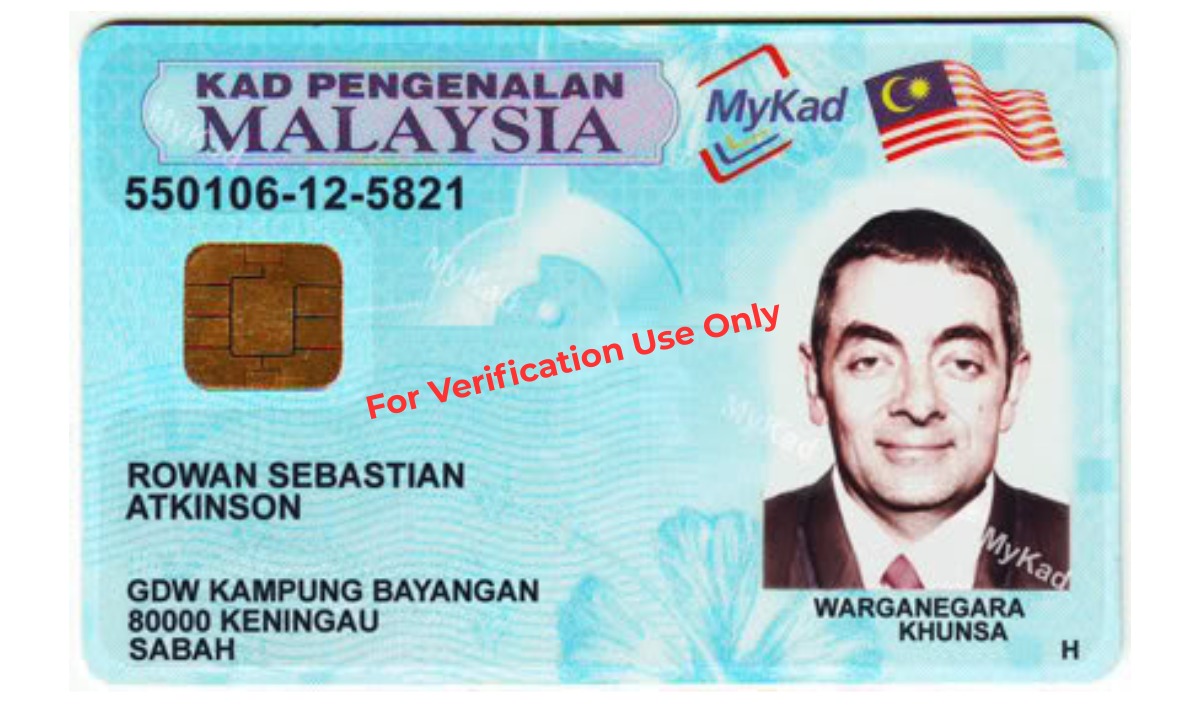
Example only. Personal details are hidden for demonstration.
Please Do
- • Use a color photo
- • Ensure all four corners are visible
- • Keep all text clear and readable
Please Avoid
- • Blurry or glare-heavy photos
- • Covering name, IC number, or face
- • Screenshots or photocopies
🛡️ Why do I need to verify my identity?
Verification prevents scammers from using fake or stolen IDs.
Ensures no one else uses your personal details illegally.
Helps maintain a safe and trusted platform for all users.
Switch Language
LanguageOur website does not have a built-in language switcher. You can easily translate the page using your browser’s built-in translation feature.
Translation is handled by your browser (Google or Apple), and no additional installation is required.
Google Chrome
Recommended- Open the website using Google Chrome.
- Right-click anywhere on the page.
- Select Translate to your language.
- The page will reload automatically in the selected language.
Safari (iPhone / iPad / Mac)
- Open the website using Safari.
- Tap the aA icon in the address bar.
- Select Translate Website.
- Choose your preferred language.
Mobile (Chrome Browser)
- Open the website in the Chrome app.
- Tap the three-dot menu at the top right.
- Select Translate.
- Choose your language.
Translation accuracy depends on the browser’s translation engine. Some brand names, buttons, or technical terms may remain untranslated.
NEXTORA Spin Wheel
_spin_wheelOnly verified users can spin the wheel.
Each successful purchase gives you 1 spin chance.
Open from menu / profile after login.
Every spin consumes 1 available chance.
- Log in to your account, then make sure your account status is Verified.
- From the top menu, open Programs and click Spin Game.
- Check your Available Spins.
- Click Spin to play (each spin consumes 1 chance).
- Your result will appear on screen after the wheel stops.
- Log in, then open Profile.
- Make sure your account is Verified.
- Tap More on the bottom menu, then select Spin Game.
- Confirm your Available Spins, then tap Spin.
How to Earn Spin Chances
After you successfully complete a purchase, you’ll receive 1 spin chance. Your available spins will update automatically.
If your account is not verified, you won’t be able to spin. Please complete verification first.
Common Problems
This feature is available for Verified users only. Please verify your account first.
You need at least 1 Available Spin. Complete a purchase to earn a spin chance, then refresh the page.
Try refreshing, switching network, or reopening the app. If it still happens, contact customer support.